
The Muséik Interface (3.2)Updated 3 months ago
The Muséik interface is made up of several different sections. This article will walk through each of the sections.
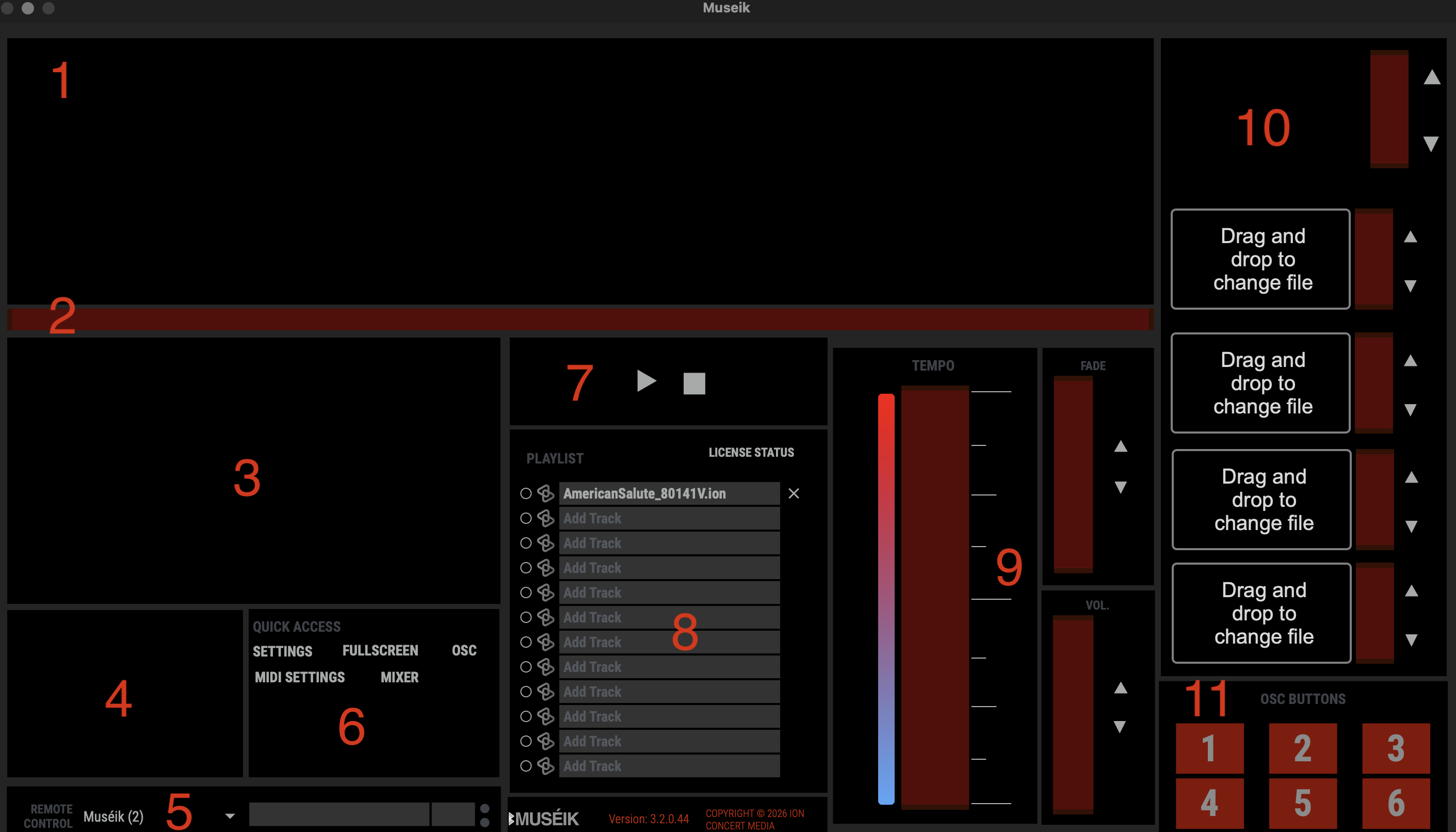
1. THE SCORE WINDOW. When a Show File is loaded and armed this long window will populate with a simplified score. When the file is playing this score will scroll across the window from right to left. The operator will use the Tempo Slider [9] to adjust the playback speed and keep the file in sync with the live performance.
2. THE QUICK SCRUBBER. The Quick Scrubber is a thin red bar just below the Score Window. The operator can grab this bar and drag it left or right to quickly advance to any point in the file.
3. THE MAIN OUTPUT MONITOR. This window shows the operator exactly what is being output to the audience. It includes both the main sync video from your Show File and the composite Video Loop [10] output.
4. THE MAIN SYNC MONITOR. This small window displays the video output from the Show File without any Loops. This window can be very helpful when the Loops [10] output is faded all the way in, covering the Show File video output in the Main Output Monitor [3].
5. MUSÉIK REMOTE SETTINGS. These settings along the bottom edge of the interface are used when the Muséik Remote app is being used.
6. SECONDARY WINDOWS PANEL. This panel includes a number of clickable text links that will take you to secondary windows to manage certain software functionality.
7. PLAY/PAUSE/STOP. These buttons can be used to play, pause or stop the Show File playback. The spacebar on your computer is the preferred play/pause controller, but the stop button in this window is the best way to reset the file to the beginning.
8. MEDIA BAY. In this window there are twelve media bays, each labelled "Add Track." The operator will load Show Files into these bays. Once loaded, the text in a bay will change to the title of the Show File. A media bay can be armed by clicking the small circle to the left. Once armed, the Score Window [1] will populate with the score.
9. SLIDER CONTROLS. In this area the operator has slider controls to adjust the playback speed of the Show File, the Main Video Output fade, and the Main Volume fade.
10. VIDEO LOOP BAYS. The far right column can be used to manage video loops. The operator can load video loops into the four media bays and control their opacity with the small sliders. The topmost window shows the loops composite video feed (the mixed output). This composite can be faded in or out using the small fader. The feed is sent to the Main Output Monitor [3] and to the live audience feed.
11. OSC BUTTONS. These buttons can be programmed from the OSC text link in the Secondary Windows Panel [6] and then used to manually send OSC commands to connected devices.