
Loading Show Files into Muséik (3.2)Updated 3 months ago
To load and play a Show File:
- Check to make sure that your files are uncompressed (they should not end in a .zip extension, the file name should end with .ion.
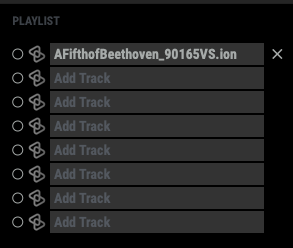
Inside the Muséik interface there are twelve media bays, each labeled "ADD TRACK". Click on the text "ADD TRACK" in the top media bay. A Finder window will pop up. Navigate to the location of your Show File. Click on the file you want to load and then click "OPEN". The license will take a moment to unlock, and then you will be ready to move to the How To Engage File section below.
HOW TO ENGAGE AND PLAY A FILE
To the left of the media bay (now populated with the title of your Show File) there is a small circle. Click on it. The circle will turn white and the music score will appear in the top window in your interface.
- Press the space bar to begin playing the media.