
How To Load Your Stage Sync™ Files into MuséikUpdated 3 hours ago
If you want to use Muséik to synchronized your own video or audio files you first need to purchase the appropriate Stage Sync™ product at ionconcertmedia.com. You must have an active Muséik subscription and be logged into the website to place the Stage Sync™ products into your cart and make your purchase.
Once you have your Stage Sync™ Show File and Muséik is open, load the Show File into an available bay in the software. When you press play the score will scroll, but there will be no video or audio output. You will. first need to link your files to the Show File. To do this:
- Check to make sure your Show File has the functionality you desire enabled. You can tell by looking at the last digits in the product SKU. A capital letter "V" stands for replaceable video enabled, "A" stands for replaceable audio enabled. A product with both functions enabled might have a SKU number like DS0098-1VA.
- Open Muséik and load your Show File into an open bay. After the license is unlocked click the circle to the left to engage the file.
- Now click SETTINGS in the middle of the interface. A new window will open. "Replace Assets" Files at the bottom of the window.
- Click into the field you wish to load (video, audio, or score) and use your file navigator to select your asset. NOTE: Click in the grey box highlighted in the image below, not the circles.
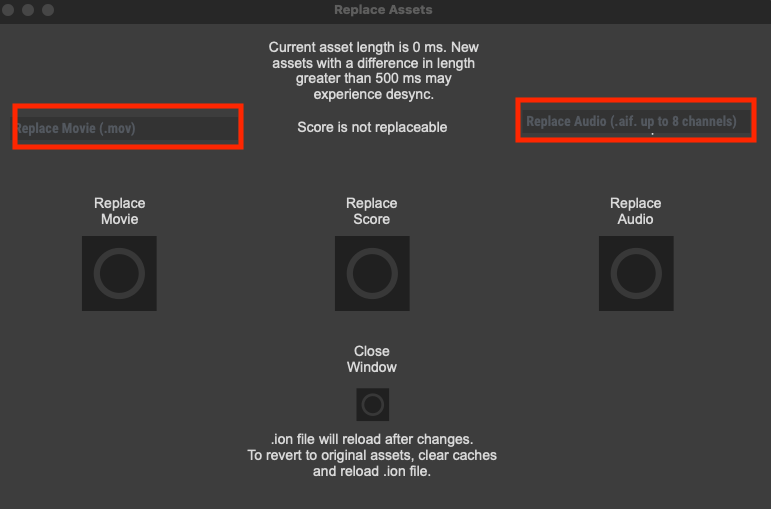
- After you have linked your file click the circle (Replace Video, Replace Audio, or Replace Score). Once the computer completes it work click the circle under "Close Window."
- Only load one asset at a time. Follow the steps in #3 for each asset type you wish to load (video, audio, score).
- Press play on your Show File and your assets will output through Muséik. If they do not play try closing Muséik and reopening it. Adjust the playback speed to create your sync with the live event.
Your assets will remain linked to your Show File every time you open the file. To remove a linked file open the SETTINGS window and click "Clear Cache."
We recommend that you check your sync before using the file in rehearsal or performance. If your files do not play perfectly in sync with the scrolling score in the software the likely cause is that your digital file was rendered at a the wrong length. Refer to the Help Docs for creating your digital files and make sure your rendered files are exactly the same length as the synchronizing audio and video files provided.